DIY RubberDucky
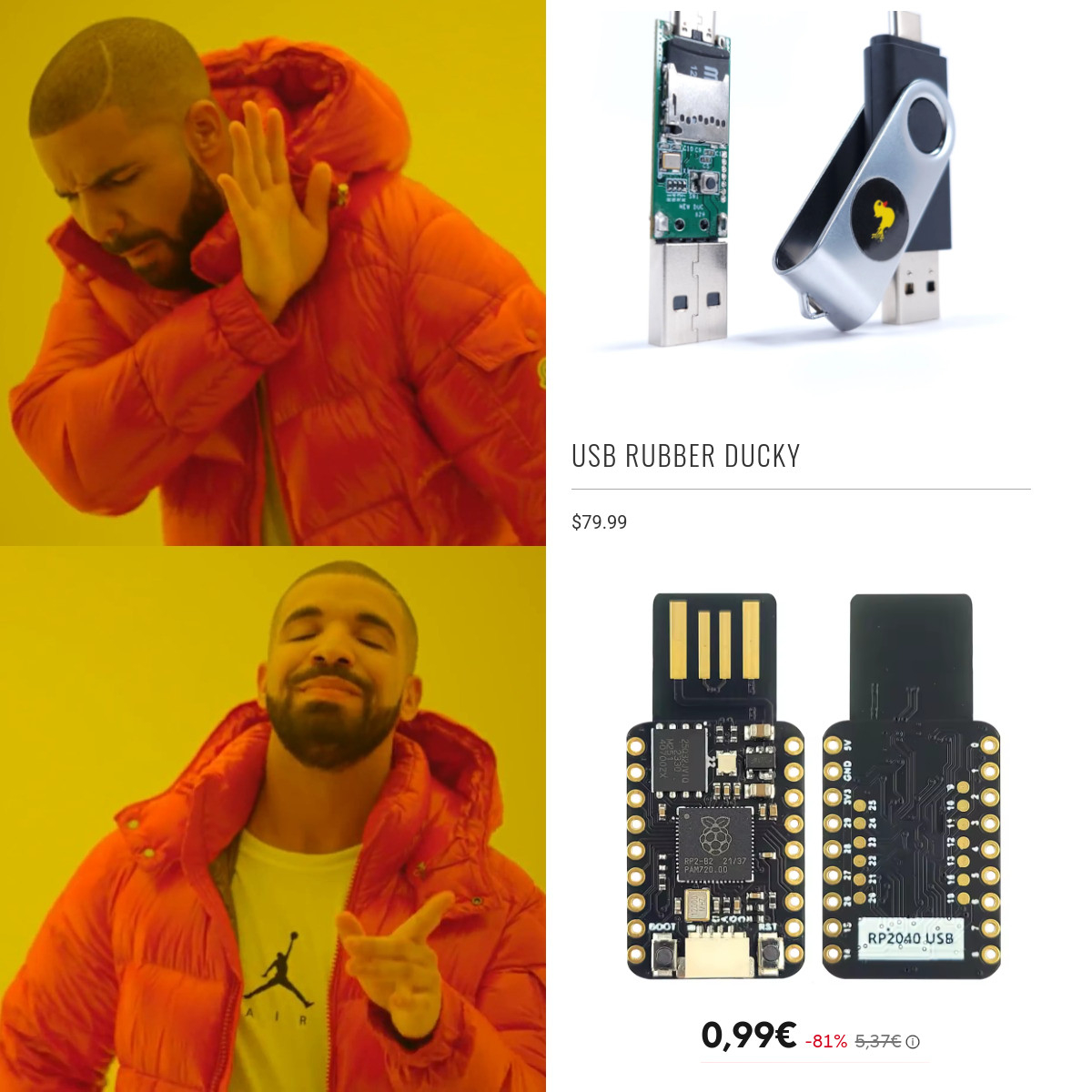
We gonna see how to create a DIY RubberDucky for only 5$.
On Aliexpress or another site, search and buy USB 2040.
Step 2, wait 1 year delivery.
Upload the firmware
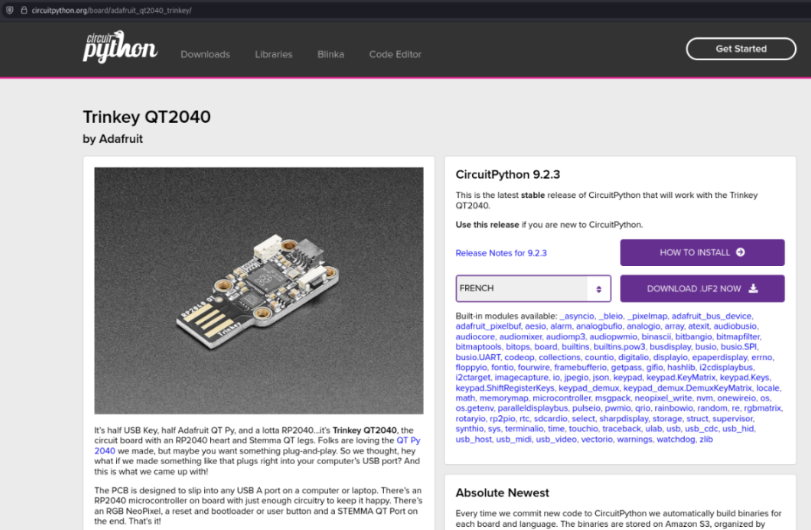
Go to circuitpython.org and download the specific uf2 file for your key. For me, I need to use Trinkey QT2040.
Press boot boutton and plug the key into your computer.
After 1 or 2 seconds you can release the button.
Copy or move the uf2 file into the key.
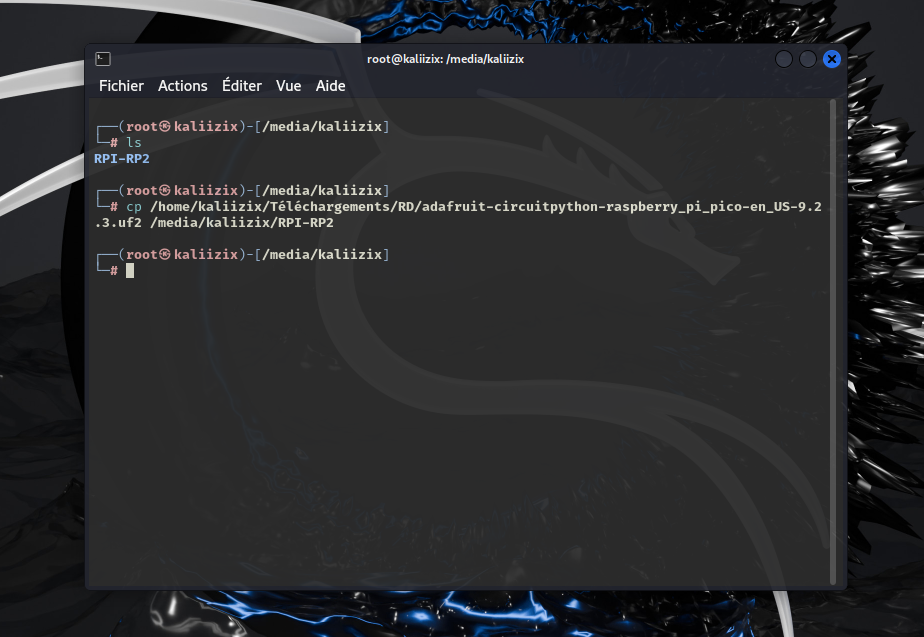
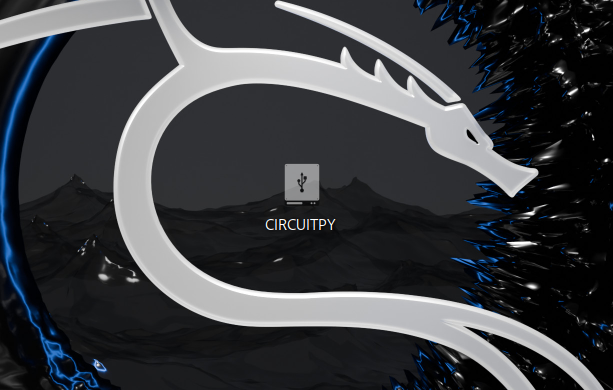
The key upload the file and reboot with a new name “CIRCUITPY”.
Download lib files
Now, we need to download lib files for the future script to emulate keyboard, mouse…
https://github.com/adafruit/Adafruit_CircuitPython_Bundle/releases/tag/20250128
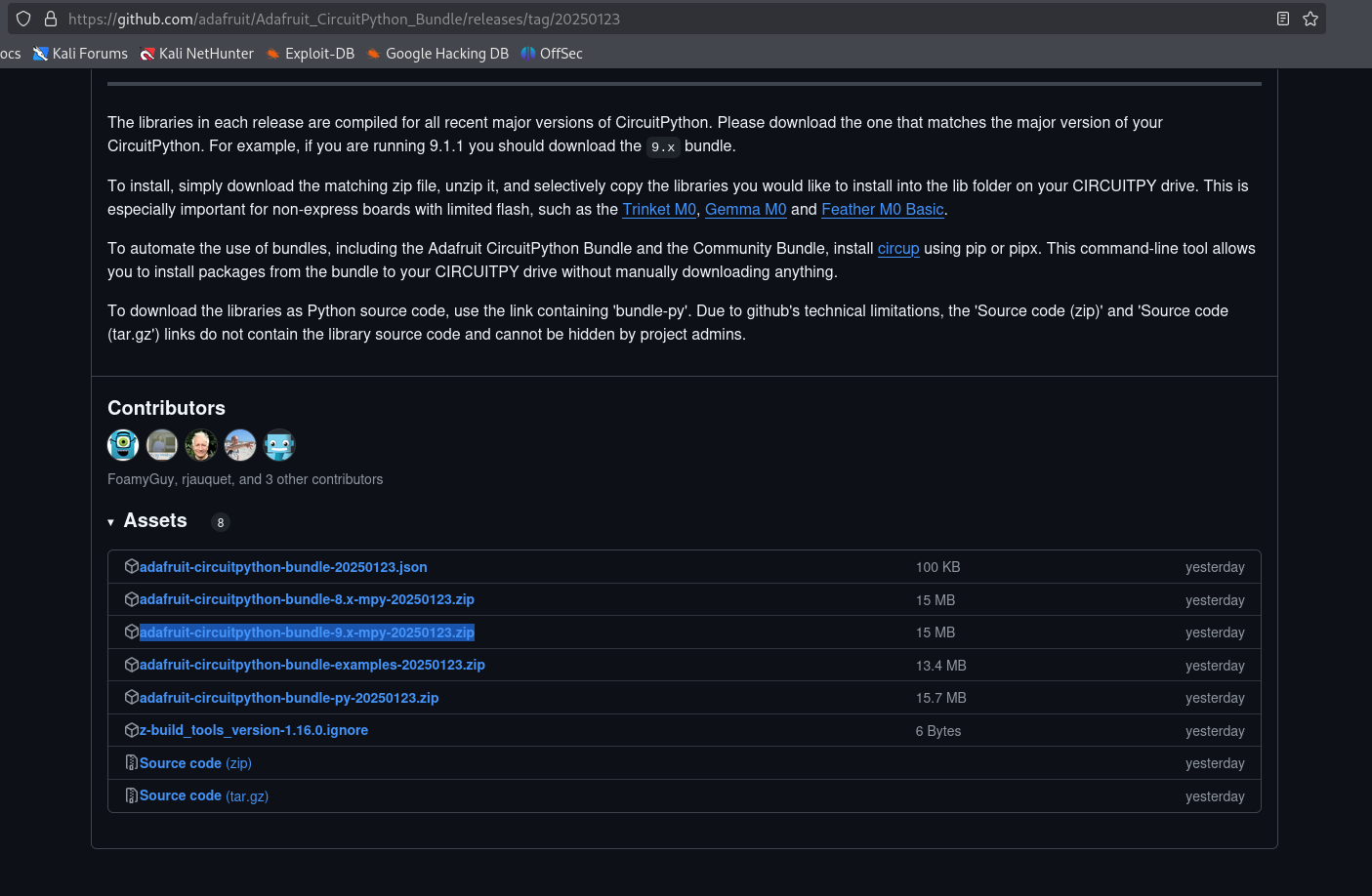
Copy or move the folder “adafruit_hid” into the lib folder of the key.
Be careful, there are 2 folder with the name “adafruit_hid”, we speak about the bigger folder with a lot of .py/.mpy inside.
If you want to use another langage like FR, Neradoc have created a good generator of keyboard layout.
https://github.com/Neradoc/Circuitpython_Keyboard_Layouts https://www.neradoc.me/layouts/
Put all the files in lib directory.
Now the key contains code.py, it’s your payload. Just create your script and have fun.
Write some scripts
Here a simple script to print “Win+L dude…” when your friend didn’t lock her computer.
import usb_hid
from adafruit_hid.keyboard import Keyboard
from keyboard_layout_win_fr import KeyboardLayout
from keycode_win_fr import Keycode


kdb = Keyboard(usb_hid.devices)
layout = KeyboardLayout(kdb)


time.sleep(2)


# shortcuts with keycodes
kdb.send(Keycode.WINDOWS, Keycode.R)
time.sleep(2)
layout.write("notepad\n")
time.sleep(2)


layout.write("Win+L dude...")
time.sleep(2)
kdb.send(Keycode.ENTER)
I’ll post some scripts on github.